
Have you ever tried to run a program on your Windows computer only to be met with an error message? It can be frustrating, especially when you’re eager to get things done. Many users overlook one simple solution: running software as an administrator. This essential step provides the necessary permissions for certain applications to work correctly and access system resources they need.
Whether you’re troubleshooting issues or trying to install new software, understanding how to run programs with elevated privileges is crucial. In this blog post, we’ll explore the ins and outs of user accounts in Windows, delve into the benefits of using the administrator account, and guide you through various methods to launch applications like a pro. Get ready for smoother operation on your device!
Understanding User Accounts in Windows
Windows operates on a user account system that helps manage access and permissions. There are generally two main types of accounts: standard user accounts and administrator accounts.
A standard user can run most applications but may face restrictions when trying to make significant changes, like installing software or modifying system settings. This limited access safeguards the system from unintentional modifications.
On the other hand, an administrator account has full control over the computer. It allows users to install applications, change settings, and even create new user accounts. With great power comes responsibility; using these privileges carelessly can lead to security vulnerabilities or unwanted changes.
Understanding this structure is vital for optimizing your experience with Windows. Knowing which type of account you’re dealing with will guide you in executing tasks efficiently while maintaining security standards.
What is the Administrator Account?
The Administrator account in Windows is a powerful user profile with extensive permissions. It provides total control over the system, allowing users to make critical changes and install software.
Typically, this account can modify settings that affect all users on the computer. This includes managing user accounts, adjusting security settings, and accessing files protected by other profiles.
By default, Windows creates an Administrator account during installation. However, for security reasons, it’s often disabled or hidden from standard use.
When enabled, it serves as a vital tool for troubleshooting and maintenance tasks. Many applications require these elevated privileges to function correctly or access certain features.
Utilizing the Administrator account wisely ensures your system remains secure while performing essential updates and installations without hindrance.
Benefits of Running Software as Administrator
Running software as an administrator unlocks a range of powerful features. It ensures that the application has full access to system resources, enabling it to perform tasks that may otherwise be restricted.
This elevated privilege is particularly useful for applications requiring installation or modification of system files. For instance, antivirus programs often need admin rights to scan and remove threats effectively.
Additionally, running software with these privileges can enhance performance. Programs designed for advanced operations run smoother and more efficiently when they have unfettered access to essential components of your operating system.
There’s also improved security management. With administrator rights, you can manage permissions more effectively and control which applications can make changes to the system settings.
Running software as administrator enhances functionality while providing users with better control over their environment.
How to Run Software as Administrator
Running software as an administrator in Windows grants programs additional permissions. This is essential for applications requiring elevated privileges to function correctly.
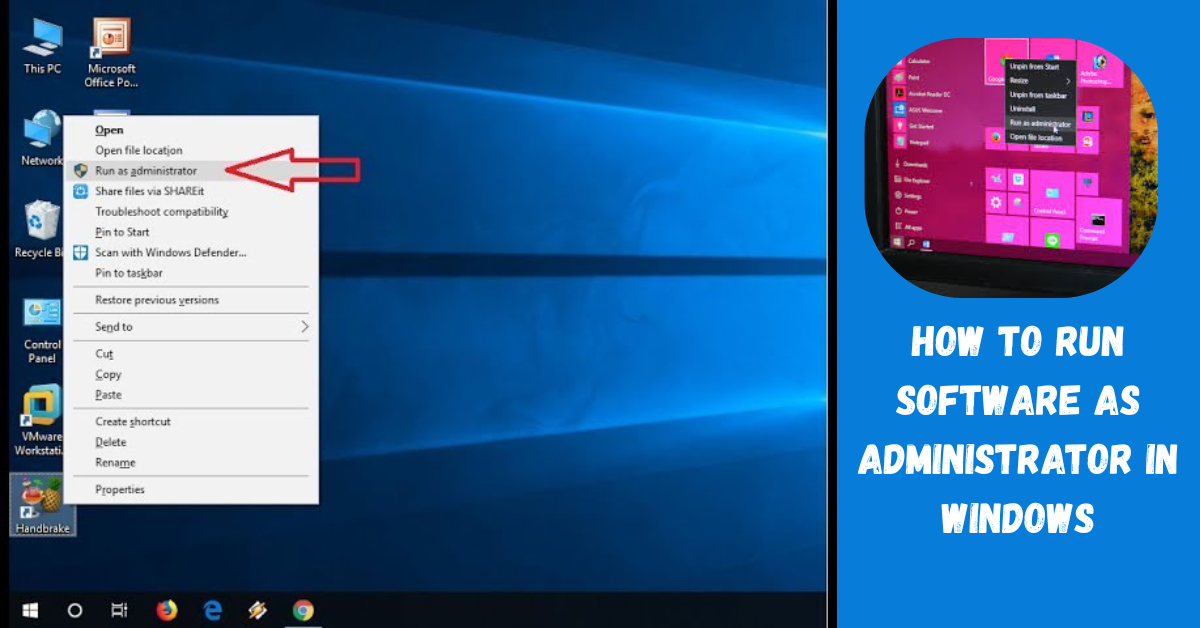
To run a program as an administrator, locate the software icon. Right-click on it and select “Run as Administrator” from the context menu. A User Account Control (UAC) prompt may appear, asking for confirmation.
If you prefer not to deal with UAC every time, you can set this option permanently. Right-click the program’s shortcut or executable file, choose Properties, then navigate to the Compatibility tab. There you’ll find “Run this program as an administrator.” Check that box and apply your changes.
For those frequently using command-line tools, running Command Prompt or PowerShell with administrative rights is straightforward too. Simply search for them in the Start menu, right-click their icons, and select “Run as Administrator.”
Troubleshooting Common Issues
When running software as an administrator, you might encounter some common issues. One frequent problem is the “User Account Control” prompt appearing too often or not at all.
If it’s overly intrusive, consider adjusting UAC settings through the Control Panel. Lowering the slider can reduce prompts but remember that this may affect your system’s security.
Another issue could be compatibility problems. Sometimes, applications designed for older Windows versions may struggle with newer operating systems. Right-click on the program icon and select “Properties.” Under the Compatibility tab, try running it in compatibility mode for a previous version of Windows.
Permission errors are also common when accessing certain files or folders. Ensure that your user account has adequate permissions by checking folder properties and modifying security settings if needed.
Antivirus software can sometimes block applications from running properly when elevated privileges are required. Temporarily disabling your antivirus might help identify if it’s causing conflicts.
Other Ways to Run Programs with Elevated Privileges
Beyond the standard method of running software as an administrator, there are several other techniques to achieve elevated privileges.
One option is to create a shortcut that always opens with admin rights. Right-click the program shortcut, select Properties, go to the Shortcut tab, and click on Advanced. There, check the box for “Run as administrator.” This way, every time you use that shortcut, it will run with elevated permissions.
You can also access certain programs through Windows PowerShell or Command Prompt. Simply launch either tool as an administrator and type in your command or path to execute applications with higher privileges.
For those who frequently need elevated access without constant prompts, using Task Scheduler is another handy approach. You can set up a task that runs specific programs with administrative rights whenever needed.
These methods provide flexibility and efficiency when working on tasks requiring higher-level permissions.
Conclusion
Understanding how to run software as an administrator is crucial for anyone using Windows. It can unlock features and permissions necessary for certain applications, ensuring they function as intended. By grasping the fundamentals of user accounts, including what makes an account an administrator, users can better navigate their system’s capabilities.
Running software with elevated privileges offers numerous benefits. From accessing restricted settings to enhancing security protocols during installations, it’s a powerful tool at your disposal. With simple methods to execute programs as an admin—like right-clicking or using shortcut keys—you can streamline your tasks efficiently.
While you may encounter issues along the way, knowing common troubleshooting techniques will help resolve these problems quickly. Plus, there are alternative ways to run applications with elevated access if the standard methods don’t suit your needs.
Mastering how to run software as administrator not only enhances productivity but also improves security measures in managing various applications on Windows systems. Understanding this process opens up new possibilities for more effective computing experiences while keeping your system safe and performing optimally.