
Ubuntu is known for its user-friendly interface and robust performance. However, as you explore the vast world of applications available, you may find that some software just doesn’t meet your needs or slows down your system. Knowing how to uninstall software in Ubuntu can keep your workspace organized and ensure optimal functionality.
Whether you’re a newcomer to Ubuntu or an experienced user looking to refine your setup, understanding the uninstallation process is essential. In this guide, we’ll walk you through quick steps to remove unwanted programs seamlessly while sharing tips and tricks along the way. Get ready to reclaim valuable space on your device and streamline your Linux experience!
What is Ubuntu?
Ubuntu is a popular open-source operating system based on Linux. It’s designed to be user-friendly and accessible for everyone, from beginners to advanced users. The name itself means “humanity towards others” in Zulu, reflecting the spirit of community behind its development.
What sets Ubuntu apart is its commitment to free software principles. Users can download, modify, and share it without any cost. This encourages a vibrant community that contributes to ongoing improvements.
With regular updates and releases every six months, Ubuntu provides stability alongside modern features. Its customizable interface allows users to tailor their experience according to preferences.
Whether you want a reliable desktop environment or a powerful server solution, Ubuntu caters to diverse needs while prioritizing security and performance.
Why Uninstall Software in Ubuntu?
Uninstalling software in Ubuntu is essential for maintaining a clutter-free system. Over time, unused applications can take up valuable disk space and slow down your computer’s performance.
Removing unnecessary programs helps streamline your workflow. It allows you to focus on the tools you actually use without distractions from abandoned applications.
Moreover, uninstalling outdated or unsupported software enhances security. Vulnerable programs can become easy targets for cyber threats, so keeping only what you need is crucial.
Regularly cleaning up your system not only optimizes storage but also improves overall speed. This proactive approach keeps Ubuntu running smoothly and efficiently, enhancing user experience.
Every program has its own set of dependencies that may linger even after uninstallation. Eliminating these remnants ensures your system remains lean and organized.
The Different Methods to Uninstall Software in Ubuntu
Ubuntu offers various methods to uninstall software, catering to different user preferences.
The command line is a powerful option for those who enjoy typing commands. Using tools like `apt` or `dpkg`, you can quickly remove applications by entering specific commands in the terminal.
For users who prefer a graphical interface, the Software Center provides an intuitive way to manage applications. You can easily search for installed software and click ‘Remove’ to uninstall it with just a few clicks.
Another approach is using package managers like Synaptic. This tool gives you more control over what you’re removing and helps identify orphaned packages that may no longer be needed.
Regardless of the method chosen, each has its unique benefits. Exploring these options allows Ubuntu users to tailor their experience based on comfort and efficiency.
Using the Command Line
The command line is a powerful tool for managing software in Ubuntu. It offers flexibility and speed that many users appreciate.
To uninstall software, you’ll primarily use the `apt` package manager. First, open your terminal. Type `sudo apt remove [package-name]` to start the uninstallation process. Replace `[package-name]` with the actual name of the software you wish to remove.
For example, if you want to uninstall VLC media player, you’d type `sudo apt remove vlc`. After entering your password, Ubuntu will begin removing it from your system.
If you’re looking to clear out related packages that are no longer needed after uninstallation, try using `sudo apt autoremove`. This command helps keep your system clutter-free by eliminating unnecessary dependencies automatically.
Using these commands can enhance your experience on Ubuntu while ensuring efficiency at every step.
Using the Software Center
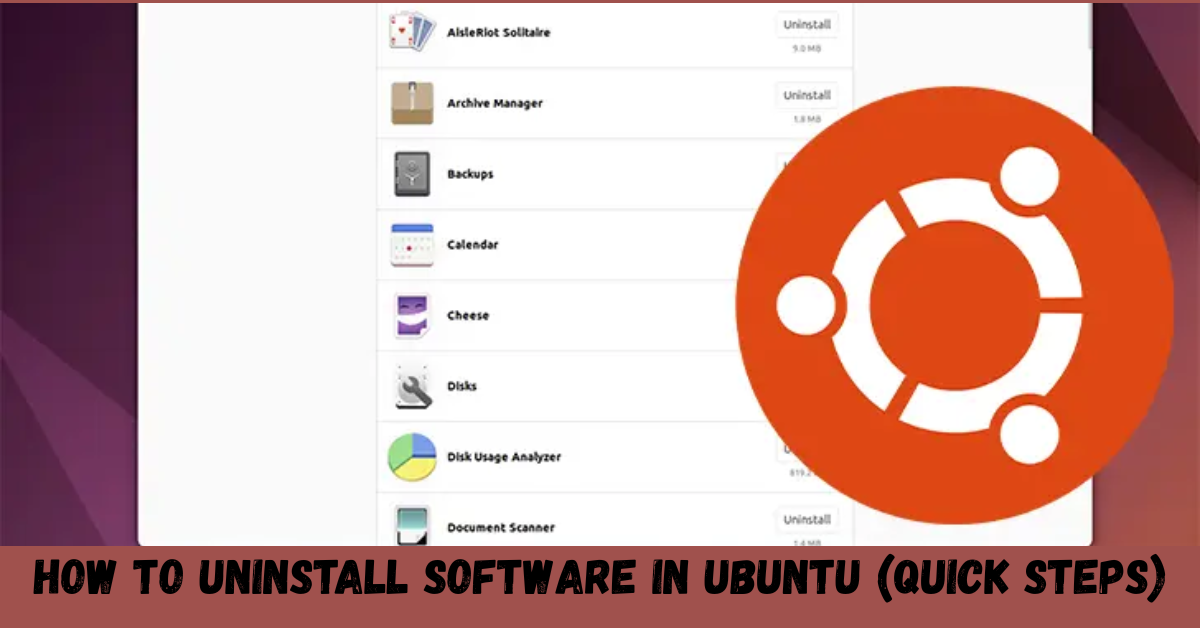
Using the Software Center is one of the simplest ways to uninstall software in Ubuntu. This graphical interface makes managing applications user-friendly.
To start, open the Software Center from your applications menu. Once it’s up, navigate to the “Installed” tab. Here you’ll find a list of all programs currently on your system.
Scroll through or use the search bar to locate the software you want to remove. Click on it for more details and options.
You’ll see an “Uninstall” button prominently displayed. A single click will initiate the uninstallation process, removing not just the application but also any associated files.
The Software Center keeps everything straightforward with visual cues and minimal jargon. It’s perfect for users who prefer a more tactile approach over command-line interfaces while ensuring that unwanted software doesn’t linger on their systems.
Removing Dependencies
When you uninstall software in Ubuntu, it’s essential to consider the dependencies that came with it. Dependencies are additional packages required for the main software to function correctly. When they’re no longer needed, removing them can free up valuable disk space.
To clean up these unused dependencies, use the terminal command `sudo apt autoremove`. This command identifies and removes packages that were installed as dependencies but are no longer necessary.
Alternatively, explore tools like Synaptic Package Manager for a graphical interface option. It provides more control over each package and its associated dependencies.
Regularly checking for orphaned packages helps keep your system lean and efficient. A tidy system not only performs better but also enhances security by reducing potential vulnerabilities from outdated software components.
Tips for a Smooth Uninstallation Process
Before you start uninstalling software, take a moment to back up any important data related to the application. This step is crucial in case you need something later on.
Next, double-check if the software has any associated dependencies. Sometimes, removing an application can affect others that rely on it. Knowing what’s linked can save you headaches down the line.
Also, consider using terminal commands carefully. While they are powerful tools for uninstallation, mistyping a command could lead to unintended consequences. Always verify before hitting enter.
Keep your system updated after uninstallation. Regular updates help ensure stability and performance while keeping your Ubuntu experience smooth and efficient. Taking these small precautions will make the process seamless and stress-free.
Conclusion
Uninstalling software in Ubuntu can seem daunting at first, but it’s a straightforward process once you understand the methods available. Whether you prefer using the command line for precision or the Software Center for an easier graphical approach, there’s something for everyone.
Remember to consider dependencies when removing applications; some may require extra steps to ensure your system remains clean and efficient. With these tips in mind, you’ll find that managing software on Ubuntu is not just achievable but also quite satisfying.
As you navigate through uninstallation processes, don’t forget that practice makes perfect. The more familiar you become with your operating system’s nuances, the smoother your experience will be. Embrace this learning journey—your skills will only grow from here!